
Getting Started with StreamCraftr
Before You Begin
What you'll need
OBS Studio 28 or later
OBS WebSocket 5 is built into OBS 28+. No separate plugin needed. Download free from obsproject.com.
A supported device
StreamCraftr runs on Windows 10/11. Install the app from the Microsoft Store before you start.
An account
After downloading the app, create an account or sign in with Google to save your layouts and sync them across all your devices automatically.
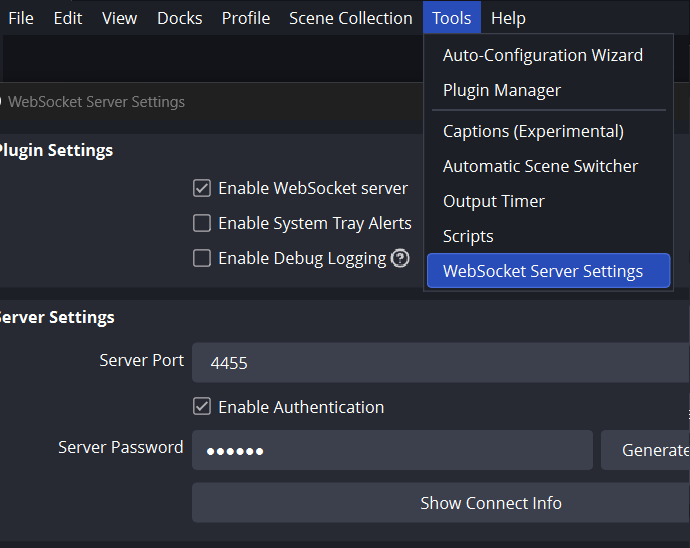
Turn on the WebSocket server in OBS
StreamCraftr communicates with OBS using the built-in WebSocket server. You need to enable it once before connecting.
- Open OBS Studio
- In the menu bar, click
Tools → WebSocket Server Settings - Check Enable WebSocket server
- Note the Server Port (default: 4455)
- Optionally set a Server Password (recommended)
- Click OK to save
If you don't see WebSocket Server Settings in the Tools menu, your OBS is older than v28. Download the latest version from obsproject.com — WebSocket 5 is included for free.
Get StreamCraftr on your device
StreamCraftr is a native app — no browser required. Install it from the Microsoft Store for the best performance and lowest latency.
The app is free to download. All core features are available at no cost (login required).
Point StreamCraftr at your OBS instance
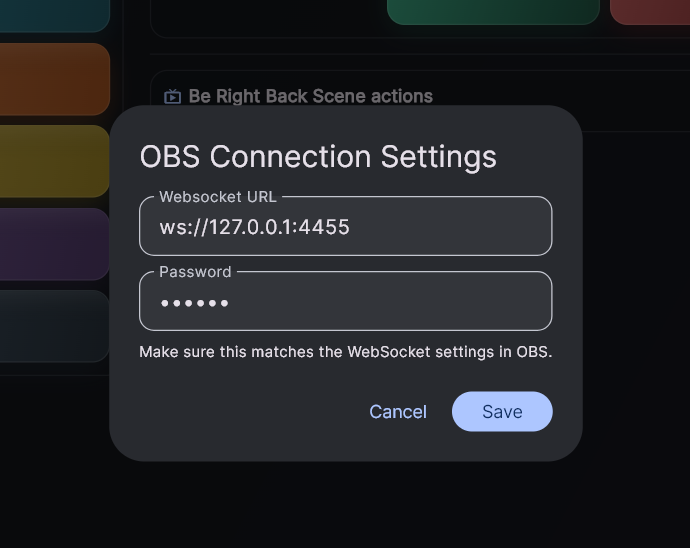
Open StreamCraftr and create an account. Then open the connection settings from the sidebar and enter your OBS WebSocket address.
- Open StreamCraftr and create an account / sign in
- Tap the plug / connection icon in the sidebar
- Enter the WebSocket URL (see below)
- Enter your OBS WebSocket password if you set one
- Tap Save — the status dot turns green when live
What URL should I use?
Windows / macOS (OBS on the same machine):
ws://127.0.0.1:4455
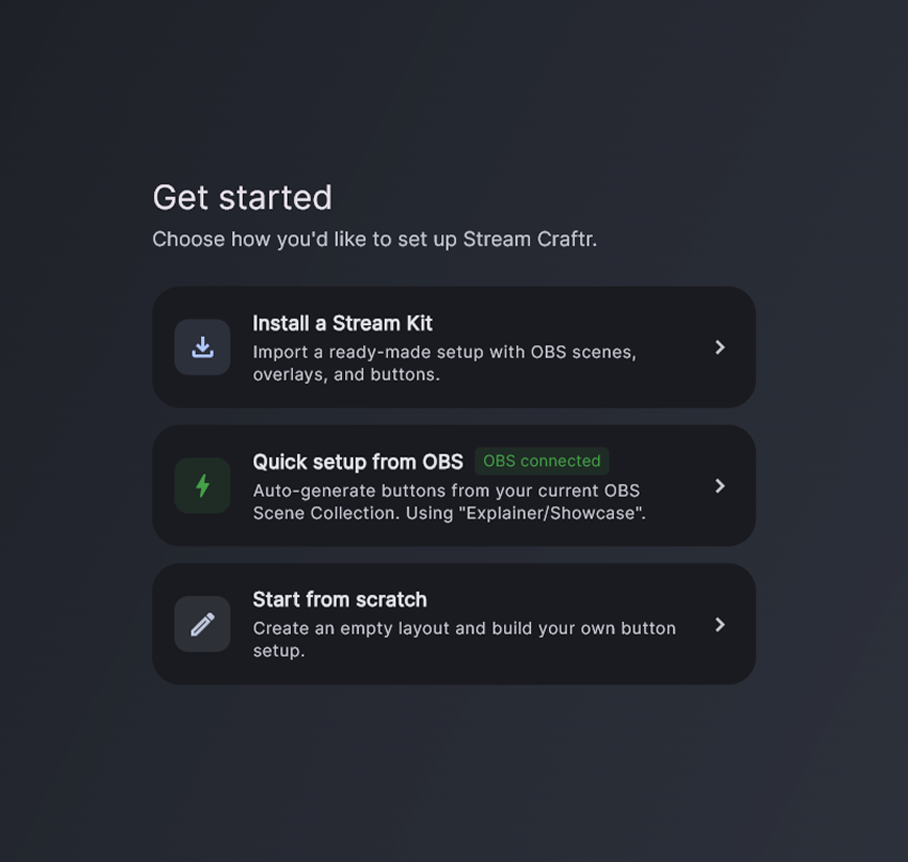 Stream Kit import wizard — screenshot coming soon
Skip manual setup — install a Stream Kit
If you have a .sckit file, StreamCraftr can configure your OBS scenes, sources, audio settings, and button layout automatically — all in one guided wizard. Skip Steps 4–6 entirely.
- In StreamCraftr, tap the settings cog in the sidebar
- Choose Install Stream Kit and select your .sckit file
- The wizard walks you through picking your webcam, mic, and game source
- StreamCraftr creates all OBS sources and installs your button layout in one step
- After import, jump straight to Step 7 to manage your layouts
Don't have a kit? Download the sample kit from the home page, or continue with Steps 4–6 to build your board manually.
Build your first control button
Once connected, tap the teal grid editor button in the sidebar or on the main grid to create a new control button. Each button can trigger one or more OBS actions.
- Tap + to open the button creator
- Give the button a name (e.g. "Gaming Scene")
- Choose a color from the color picker
- Tap Add Action and choose an action type (see Step 6)
- Select the target scene or source from the dropdown — StreamCraftr fetches these live from OBS
- Tap Save — your button appears in the grid immediately
Make sure StreamCraftr is connected to OBS before creating buttons — the scene and source lists are loaded live from OBS and won't appear otherwise.
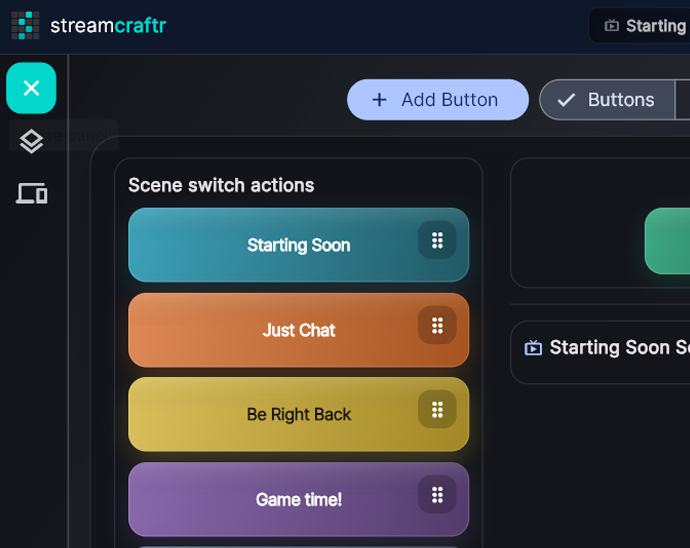
What can a button do?
Every button is made of one or more actions. Each action tells OBS to do something specific. Choose from three action types:
Scene Switch
Instantly cut to any OBS scene. Choose the target scene and optionally override the transition type (Cut, Fade, custom etc.) for this button specifically.
Show / Hide Source
Toggle any source in your active OBS scene — graphics, cameras, browser sources, text overlays. Enable auto-hide so the source disappears after it finishes playing.
Media Action
Play, restart, or stop a media source in OBS. Use this for sound effects, alert videos, or countdowns that you want to trigger on demand.
Delay
Pause the macro for a set number of seconds before the next action runs. Useful for timed intros, holding a scene, or syncing with audio.
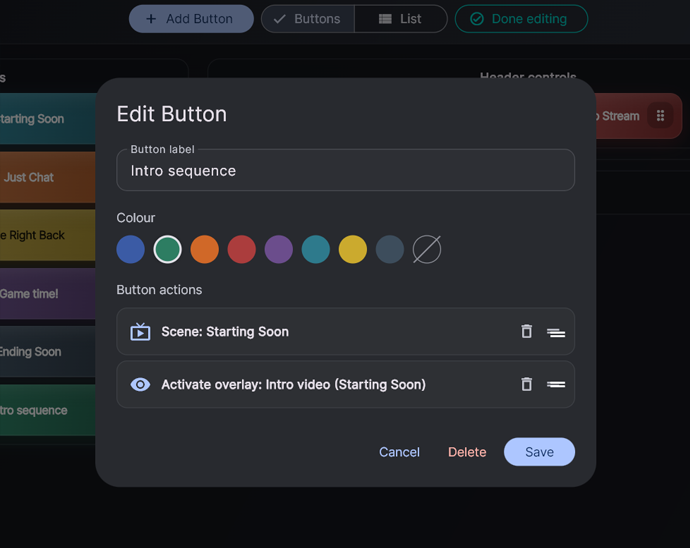
Chain actions into a single button press
Macros let you automate complex sequences — like playing an intro video, then auto-cutting to your main scene — with a single tap.
- In the button editor, tap Add Action multiple times to stack actions
- Long-click and drag to reorder the action sequence
- While a macro is running, a progress queue appears — cancel queue items mid-sequence
Example macro: "Intro Sequence" → Switch to Starting Soon scene → Play intro video → Wait for video to finish → Switch to Main Camera scene. One tap, fully automated.
Create multiple layouts for different shows
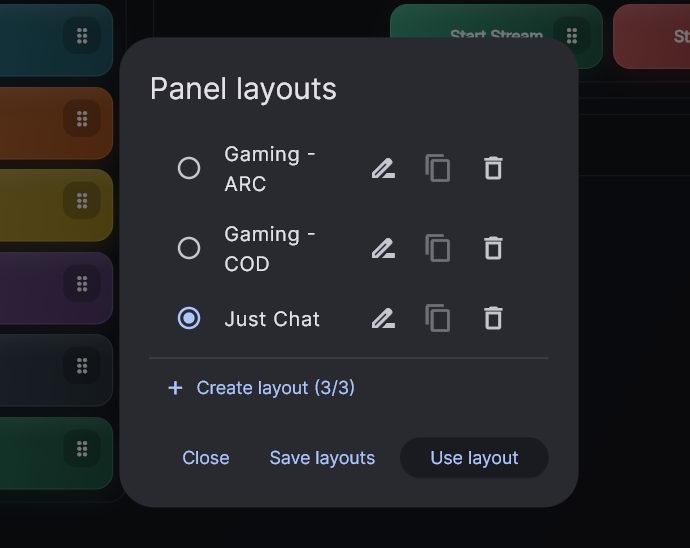
Layouts let you keep entirely separate button boards for different types of content — switch between them instantly without losing your setup.
- Tap the layout icon in the sidebar to open the layout selector
- Tap + New Layout and give it a name (e.g. "Gaming", "Podcast")
- Switch layouts live during a stream — your buttons update instantly
- Enter Edit Mode (long-press any button) to reorder or delete buttons
Troubleshooting
Having trouble? Try these.
StreamCraftr says "Connection failed" or won't connect
Make sure OBS is running and the WebSocket server is enabled (Tools → WebSocket Server Settings → Enable WebSocket server). On Windows and macOS, confirm the URL is ws://127.0.0.1:4455. If you changed the port in OBS, update it in StreamCraftr to match.
Password error — authentication failed
Double-check the password entered in StreamCraftr matches exactly what's set in OBS (Tools → WebSocket Server Settings → Server Password). Passwords are case-sensitive. If you're not sure, clear the password in OBS (leave it blank) and leave the field empty in StreamCraftr too.
Scene and source lists are empty in the button editor
StreamCraftr loads scenes and sources live from OBS. Make sure you're connected (green status dot) before opening the button editor. If you recently added a scene or source to OBS, reconnect to refresh the list.
My buttons don't appear after signing in on a new device
On first launch after signing in, tap the account icon → Load from cloud. Choose Replace to overwrite the empty local layout with your cloud version. Future changes will sync automatically.
OBS crashes or disconnects mid-stream
StreamCraftr will detect the dropped connection and show a reconnect prompt. Restart OBS and tap Reconnect in StreamCraftr. Your button layout is preserved locally — nothing is lost.
Still stuck?
Email us at support@streamcraftr.com and we'll help you get set up. Include your platform (Windows / macOS), your OBS version, and a brief description of what you see.
Copyright © 2026 Kevin Huer
OBS® Studio is developed by the independent OBS Project. StreamCraftr is not affiliated with, sponsored by, or endorsed by the OBS Project.